![Untitled design (3)-1.png]](https://support.toughcommerce.com/hs-fs/hubfs/Untitled%20design%20(3)-1.png?width=40&height=40&name=Untitled%20design%20(3)-1.png)
Tough Commerce’s filtering and column customization tools make it easy to find the information you need and tailor each page to your workflow. You can filter records, choose which columns are visible, and rearrange columns to create a view that works best for you.
Please note: These features will be available in your dashboard on January 15, 2026.
The available filters and column options will vary depending on which area of the dashboard you’re viewing.
Where to find filters
-
Navigate to any supported page in the Tough Commerce dashboard (for example: Orders, Finance or Customers).
-
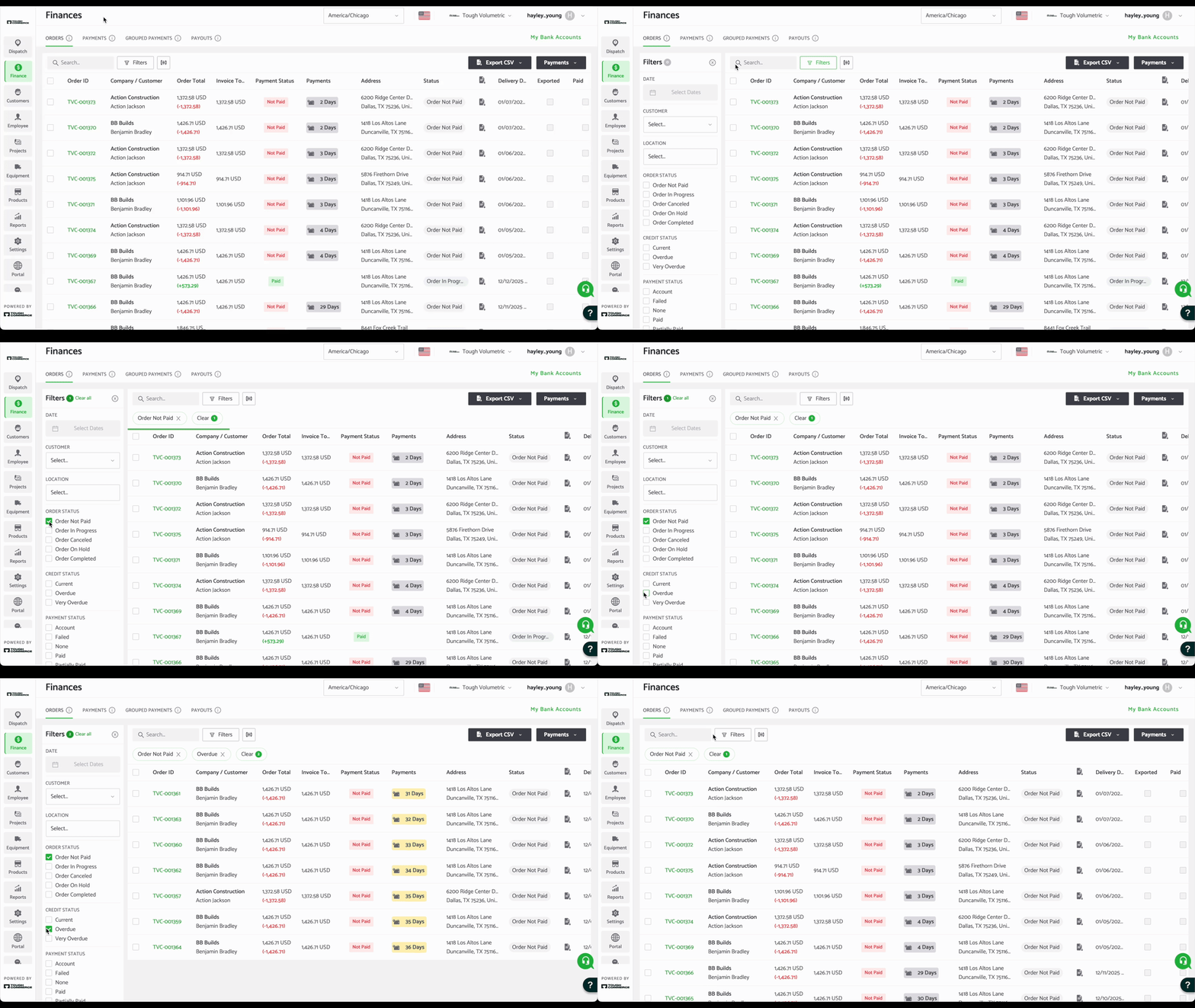
Locate the Filters button in the top-left area of the page, directly beside the search bar.
-
Click Filters to open the filter panel.
When opened, the filter panel will slide out on the left-hand side of the screen.
How the filter panel works
The filter panel allows you to refine the data shown on the page using multiple criteria at once.
-
Filter options are contextual: The fields you see (such as date, customer, location, order status, or payment status) will vary depending on the page you’re on.
-
Multiple filters can be applied at the same time: For example, you can filter by order status and payment status simultaneously.
-
Filters update results automatically: As filters are applied, the table will refresh to show only matching records.
Applying filters
-
Open the Filters panel.
-
Tick the checkbox beside each filter you want to apply.
-
The table will automatically update to show only matching results.
- Applied filters will appear as circles beneath the search box, so you can easily see what’s active.
To remove a filter, simply untick the checkbox.
At the top of the filter panel, next to the Filters title, you’ll see a green circle with a number. This number indicates how many filters are currently applied.
-
Click Clear all beside the Filters title to remove all applied filters at once.
-
To minimize the filter panel, click the X in the top-right corner of the panel.
Displaying and rearranging columns
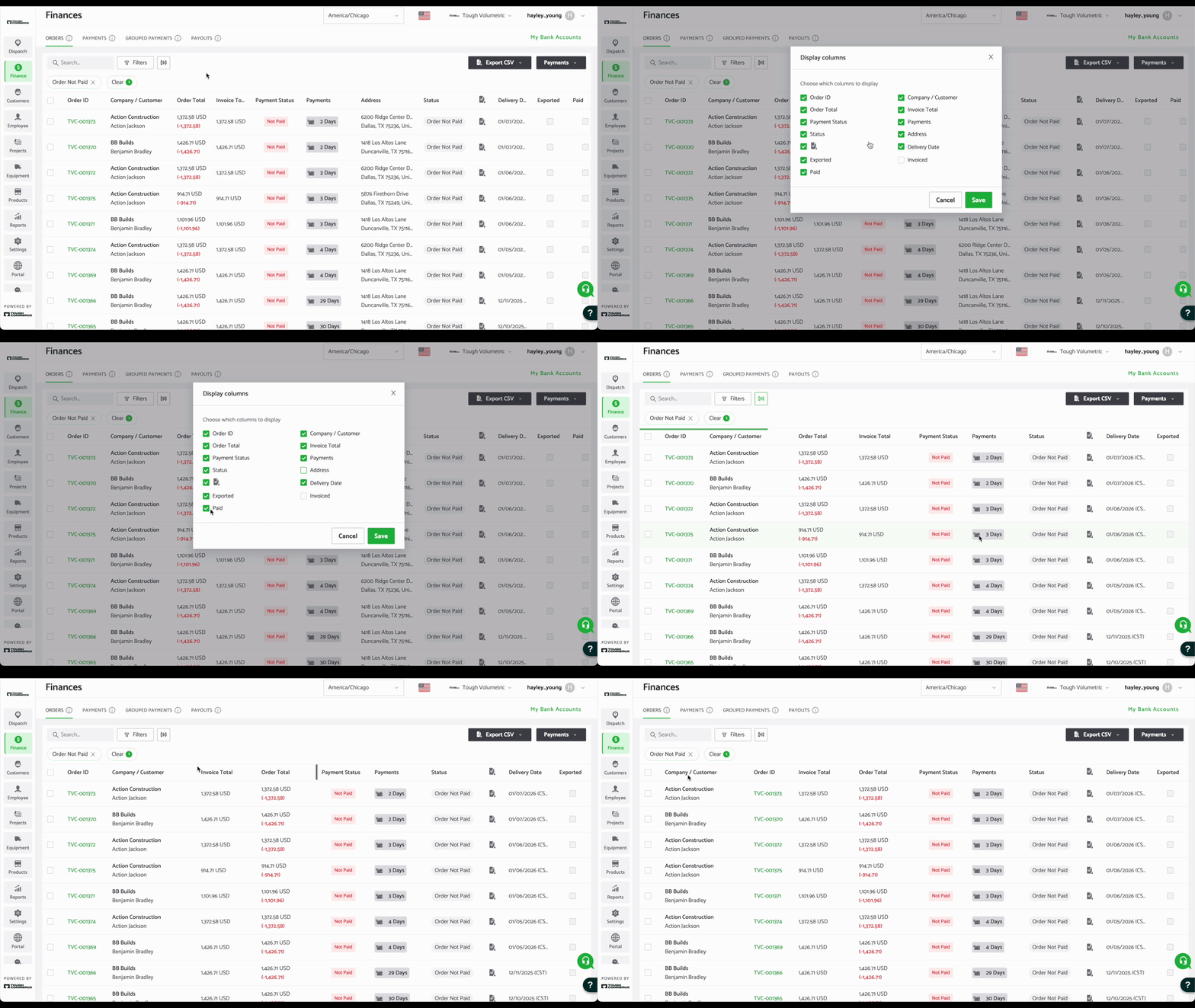
Tough Commerce also allows you to customize how data is displayed on each page by choosing which columns are visible and rearranging them to suit your workflow. These settings are saved at a user level, so changes you make will only apply to your own account and won’t impact your team members also using Tough Commerce.
Choosing which columns are displayed
-
Click the column display icon (the switch-style icon) beside the Filters button.
-
Tick or untick the checkboxes next to each column you want to show or hide on that page.
-
Click Save to apply your changes.
Once saved, only the selected columns will appear on the page.
Rearranging columns
-
To rearrange columns, click and drag the column title left or right within the table header.
-
The new column order will be saved automatically for your user account.
Available filters and columns vary by page and are tailored to the data shown in each section of the dashboard.